



Before starting make sure to read the articles VPN Quickstart and Setup VPN.
How to install V2RayN for Windows.
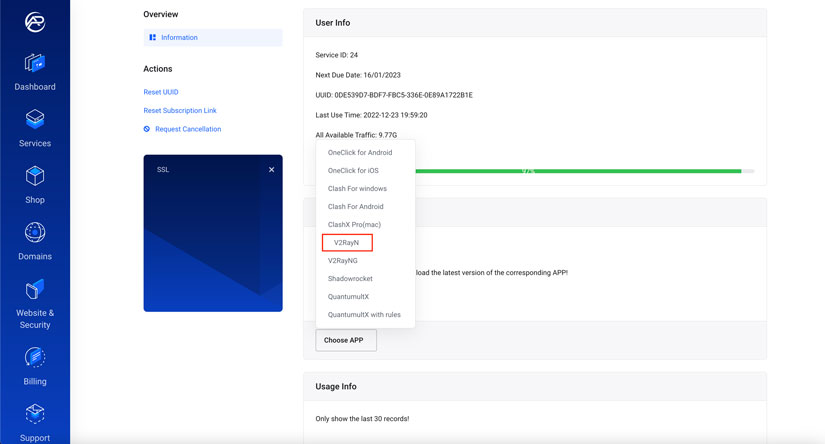
1. From Choose APP button, Select V2RayN.
2. install the APP
-
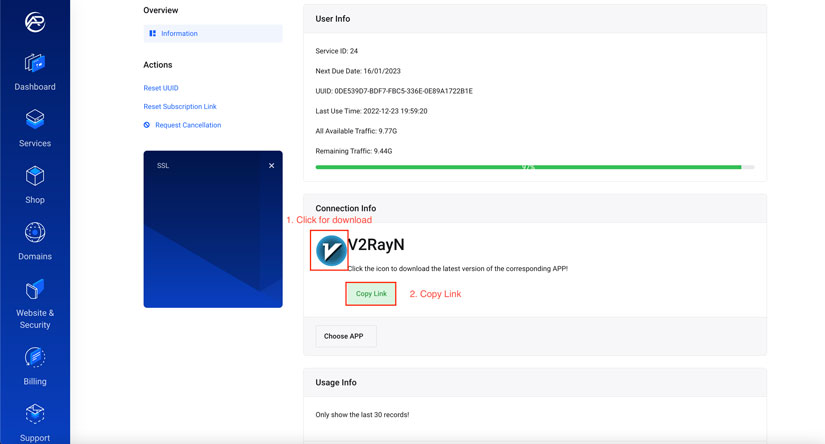
Click the icon to download and install the latest version of V2RayN For Windows!
-
By Clicking on the Copy Link button. You can copy a subscription link for the V2RayN application.
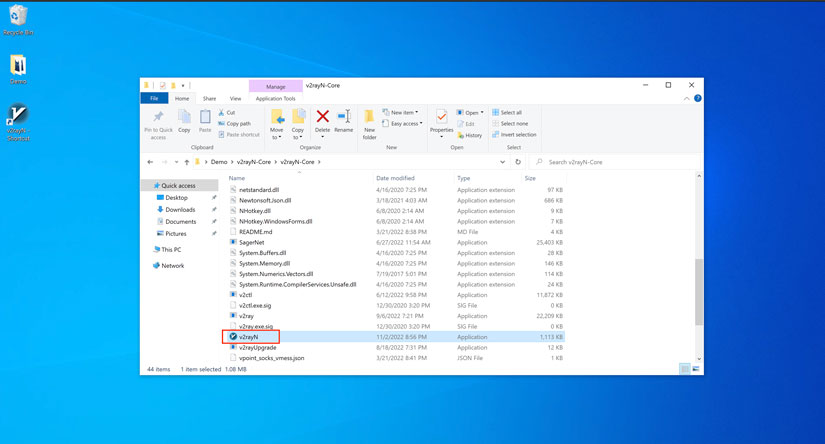
3. Unzip the v2rayN-Core.zip and run v2rayN or create Shortcut to Desktop.
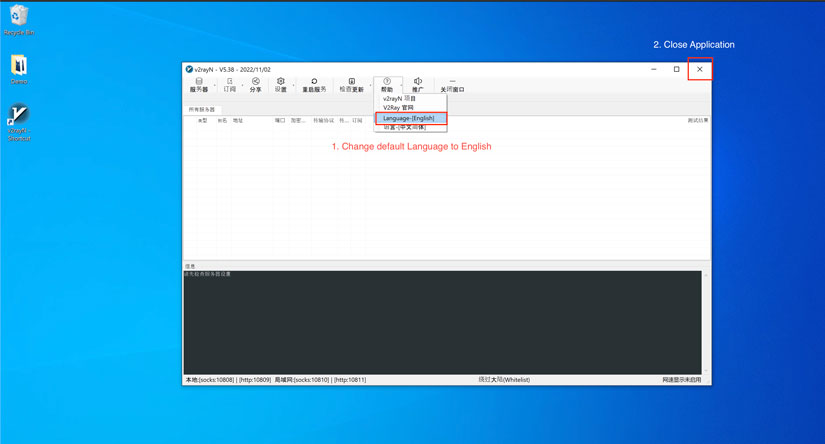
4. Don't Panic, V2RayN default language is Chinese.
- Click on ? icon, and choose Language-[English]
- Close Application.
5. right click on V2RayN Icon in the Task Bar and choose the last option to exit.
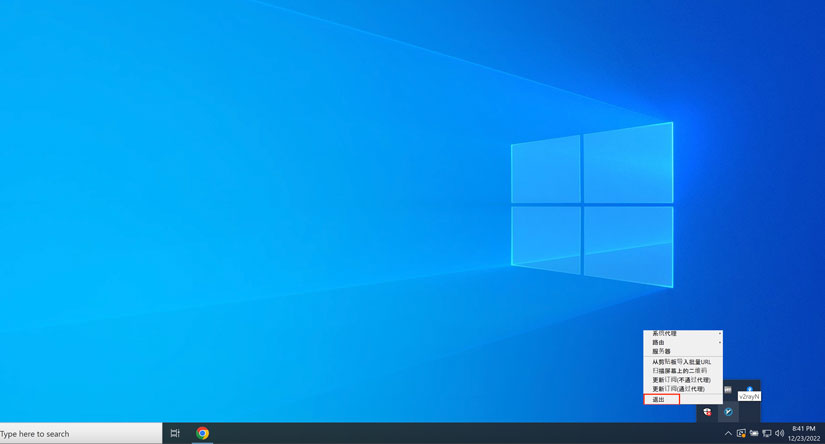
6. Import Subscription Link to V2RayN
- Run v2rayN.
- Open the v2rayN panel.
- From Subscriptions, choose Settings.
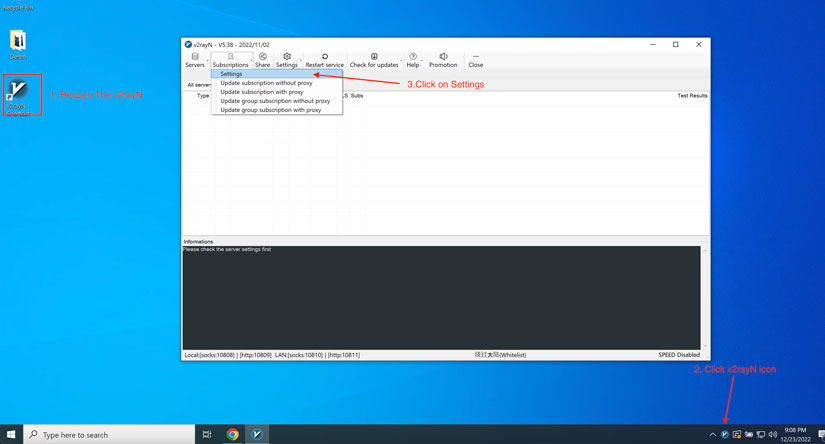
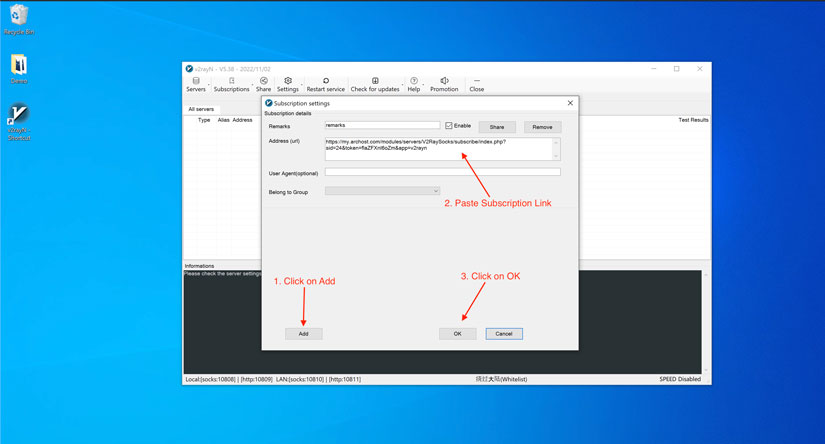
7. Import Subscription.
- Click on add to enter Subscription details.
- Paste Subscription Copied Link (Step 2.2) in Address(URL)
- Click on OK.
8. From Subscriptions, Click on Update Subscription ( you can try with or without Proxy).
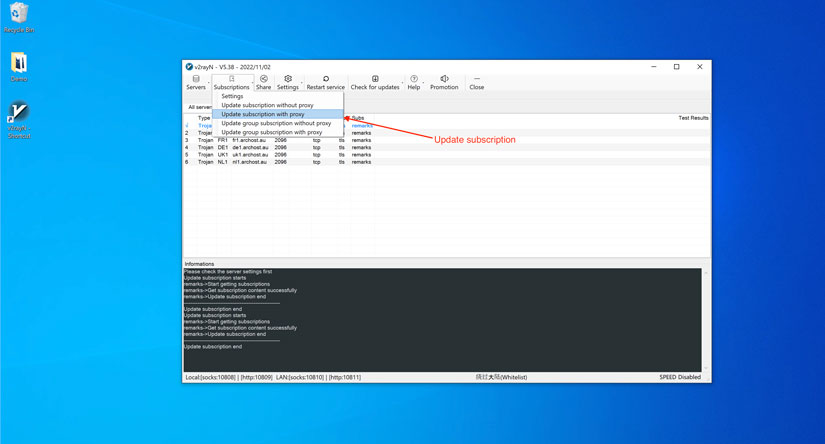
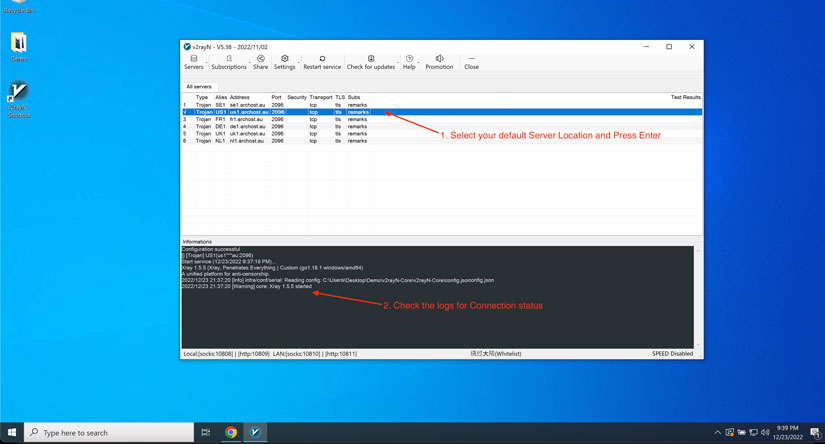
9. Choose your default Server Location and hit Enter. you can check the connection logs in the information command Line.
10. from V2rayN Icon on Taskbar, Select System Proxy and Enable Set System Proxy.
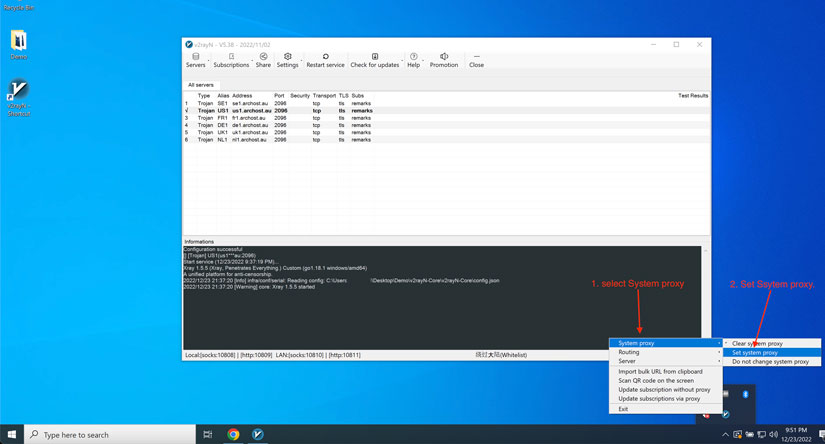
11. The V2rayN Icon Will be Red and you Connect to Ultrafast ArcHost VPN servers optimized for streaming, gaming, or torrenting!